User Management
Manages users, roles, and permissions to ensure secure collaboration and decision authority
Overview
User management established the foundation for secure and structured collaboration throughout the decision-making journey. By defining user roles, permissions and access levels, it ensures that Executives, managers and analysts can access relevant information, contribute within their responsibilities and participate in decision appropriately. This role-based governance protects sensitive data, streamlines cross functional collaboration, and maintains accountability by ensuring every stakeholder has the right level of visibility, editing rights and decision authority at every stage of the workflow.
Role
Lead Product Designer | NucliOS
User Research, Interaction, Visual Design, UX Design, Prototyping, Testing
October 2025 - January 2026
Scenario
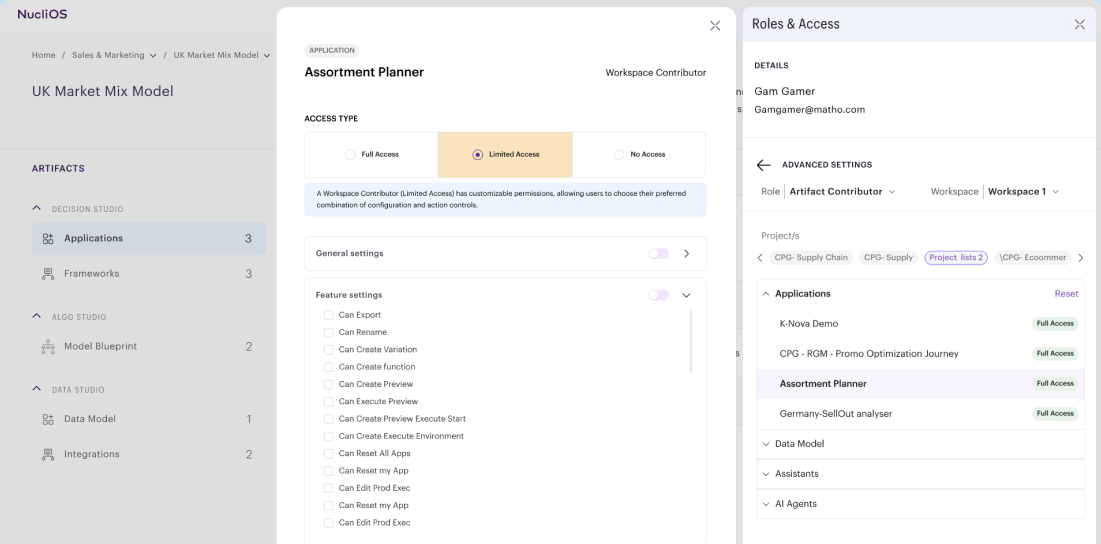
Workspace 1 admin adds a Artifact contributor to this space. This new user has access to all the projects and artifacts inside this workspace. Though this user do not have access to Artifact C in project 1 and Artifact B in Project 2. Also he has limited access to artifact E in Project 2 ( cannot copy or move artifact E in Project 2)
Design a workflow that will allow workspace admin to make these granular level configurations
Need flexibity to configure same accesibility to all the apps. Have limited access control on some artifacts.
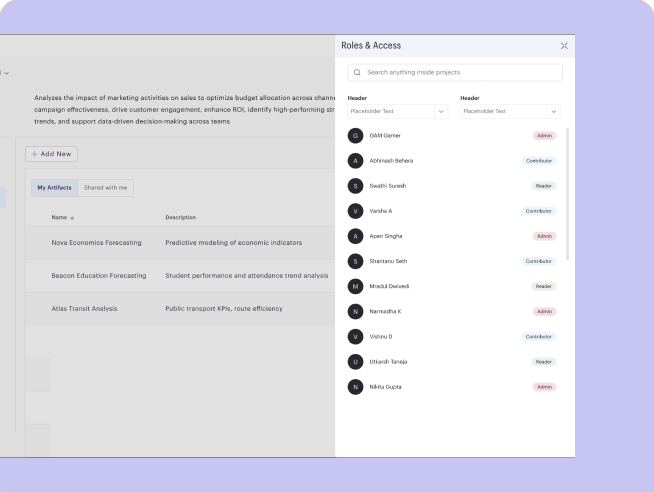
User Roles & Access
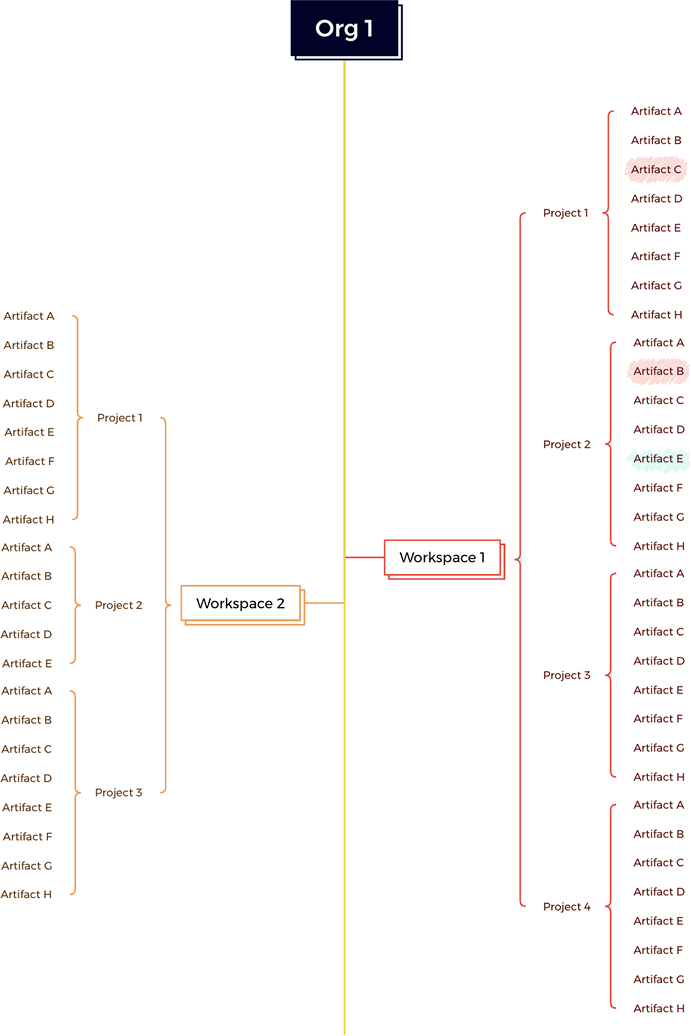
- When user clicks on Roles and Access on the projects page, they can view list of people who have access to the file, with their roles mentioned beside each name
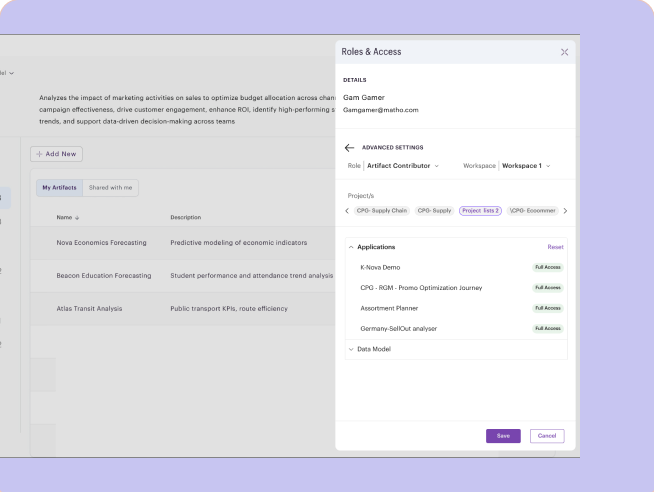
User Details
- Once clicked on any of the user name another layer of information appears contexual to the user
- All the list of projects and artifacts are displayed here, with access type to each artifact as well
- User also has option to narrow down the search based on roles and workspace
- Back icon besides advanced settings would allow user to go back to the user list
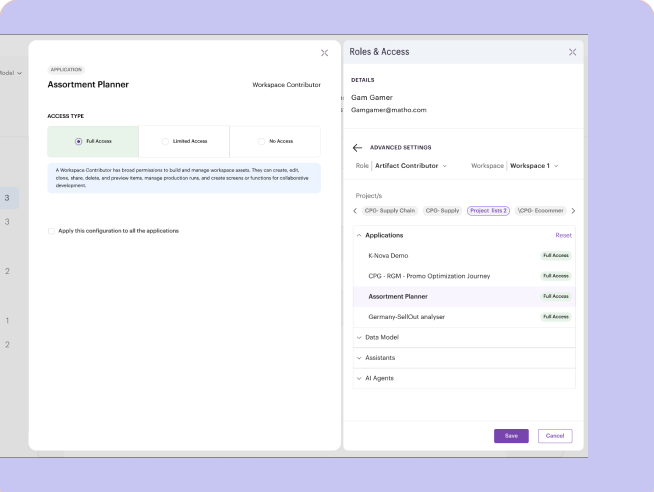
User Details
- Once clicked on any of the artifact from the list, another drawer will slide open
- In the second pannel visible, user can edit and view the current access type
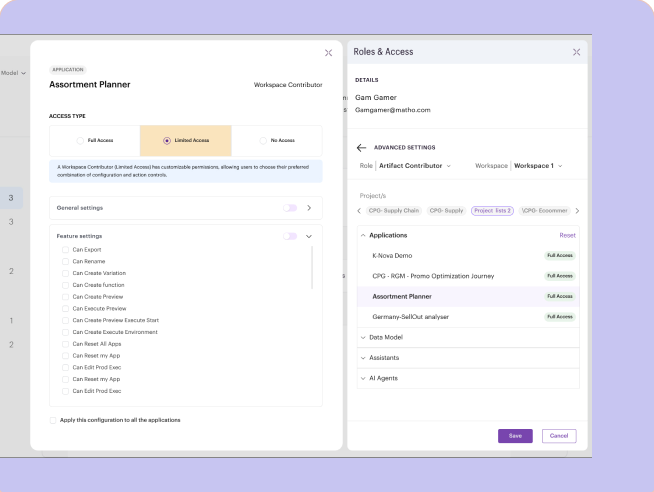
Access Type
- Change in access type would allow user to customise the settings at granular level